Mobile App
»
Download & Sign-In Instructions
Download & Sign-In Instructions
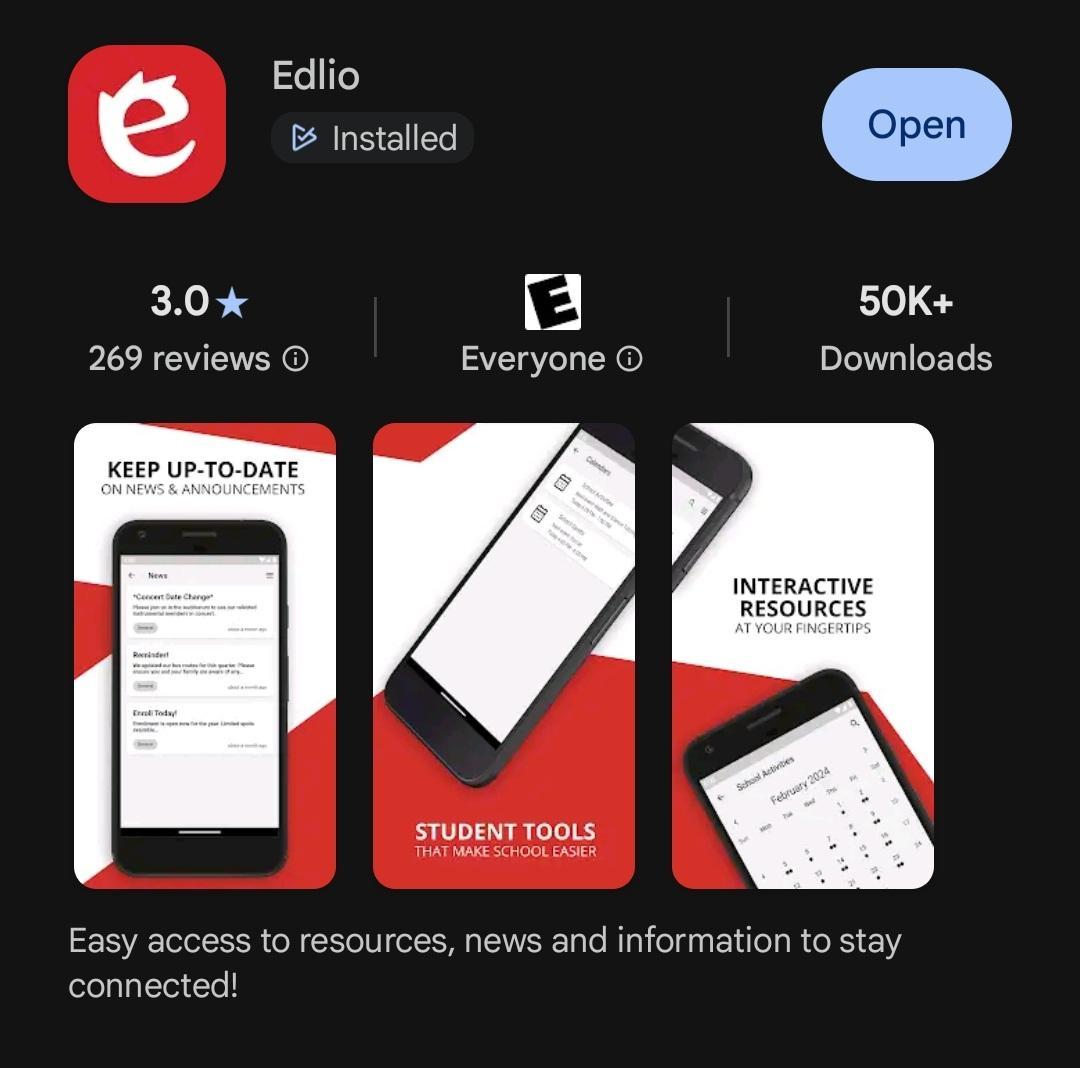
- Click one of the links below OR open the Google Play Store/Apple App Store and search for "Edlio"
- This app has a stylized 'e' as it's icon
- Once the app downloads, make sure to ENABLE Location Access
- This will allow the app to find VAISD and give you the option to join VAISD
- Select the "Van Alstyne Independent School District" option from the list
- Allow Notifications for the app, so you know when your student's teacher tries to reach you or news items are added
- When prompted, click "Setup"
- Choose your student's home campus to follow
- You may follow as many campuses as you'd like, but know that you will get notifications for all campuses
- At this point, it will ask you to login
- You should have already received an email asking you to reset your password
- This will go to the email address that you used when you enrolled in Skyward
- If you do NOT already have an email in your inbox asking you to reset your password, click "Forgot Password" and you should receive another email
- Click the link in the email to reset your password
- Go back into the app and use your email address (again, the email address you used when you signed up for Skyward) and new password to sign in